Quick start
After installing File Explorer, connect it to WebDAV to start managing your store files.
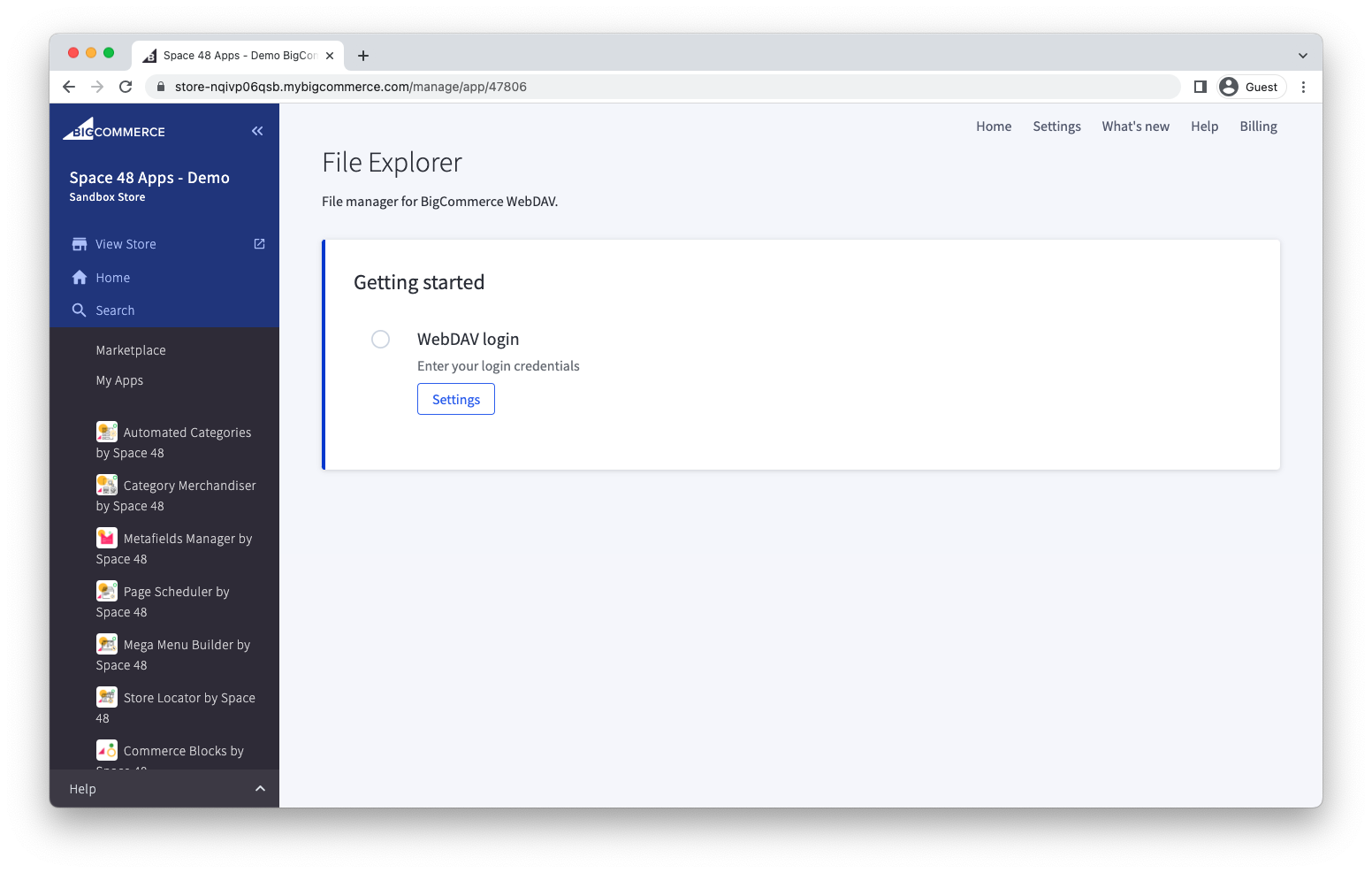
Connect WebDAV
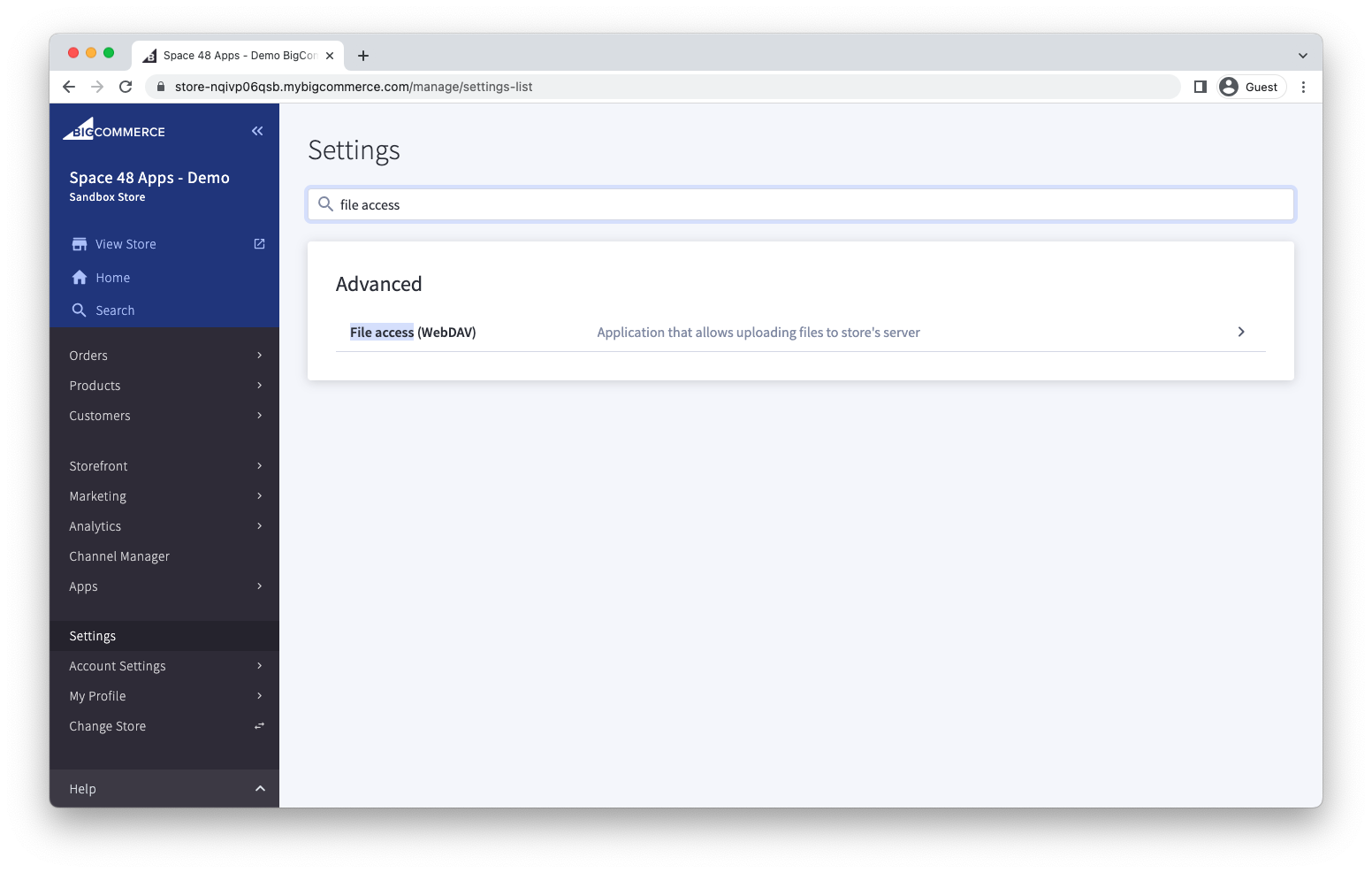
You need a WebDAV username and password for your BigCommerce store.
- In the BigCommerce control panel, go to Settings > File access (WebDAV).
- Open the WebDAV account details.
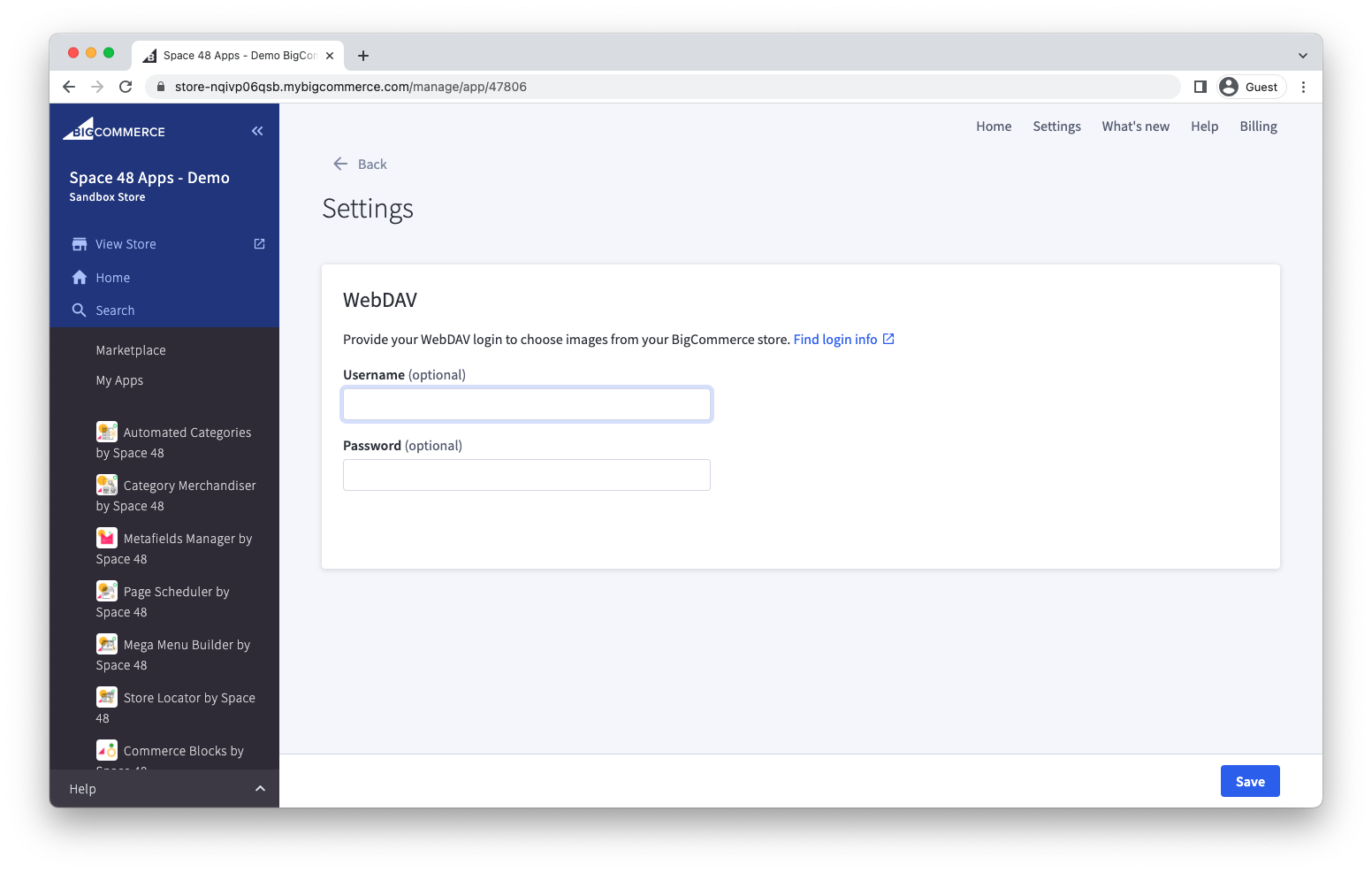
- In File Explorer, open Settings.
- Enter the WebDAV username and password, then select Save.
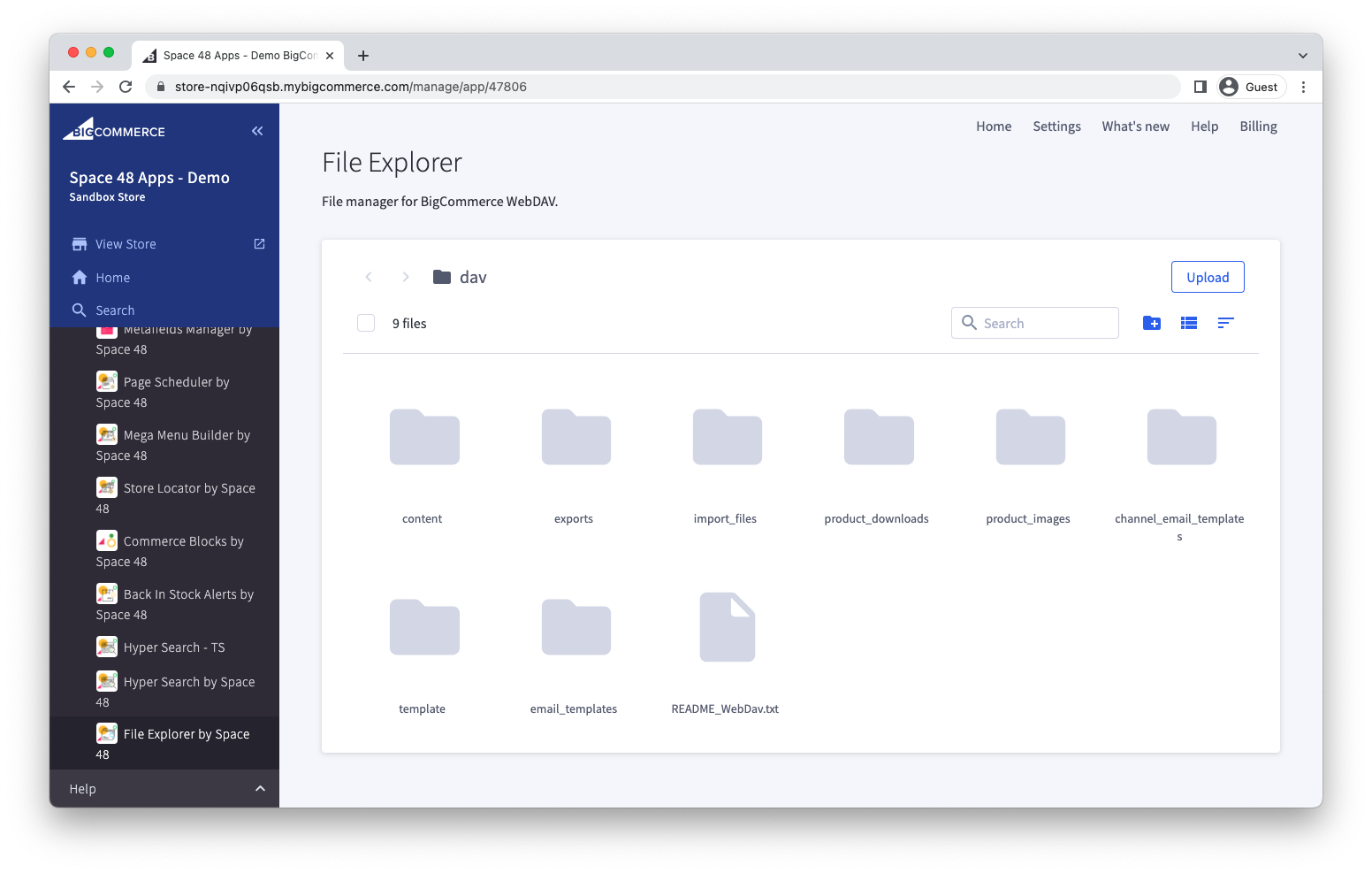
The File Explorer dashboard displays the files and folders in the root /dav directory when the credentials are valid.
If File Explorer reports that the login details are invalid, copy the credentials again from BigCommerce and make sure there are no extra spaces.
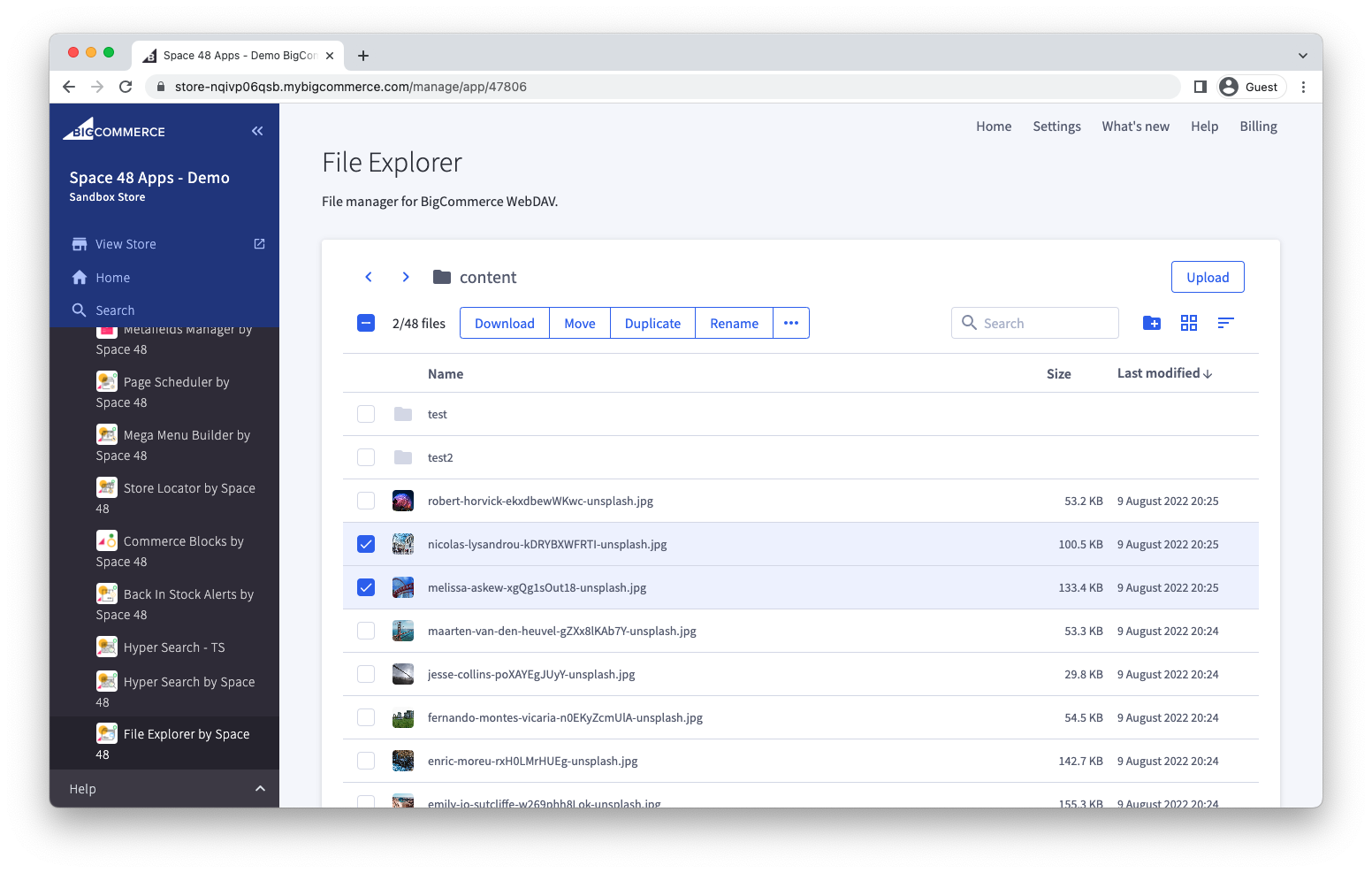
Browse and select files
Double-click a folder to open it. Files in /dav/content can have public storefront URLs, while other folders can contain exports, templates and files used by BigCommerce.
Folders appear before files by default, with files ordered by when they were last modified. Use the sorter to order them by name. Select the List or Grid icon to change the view.
Upload files
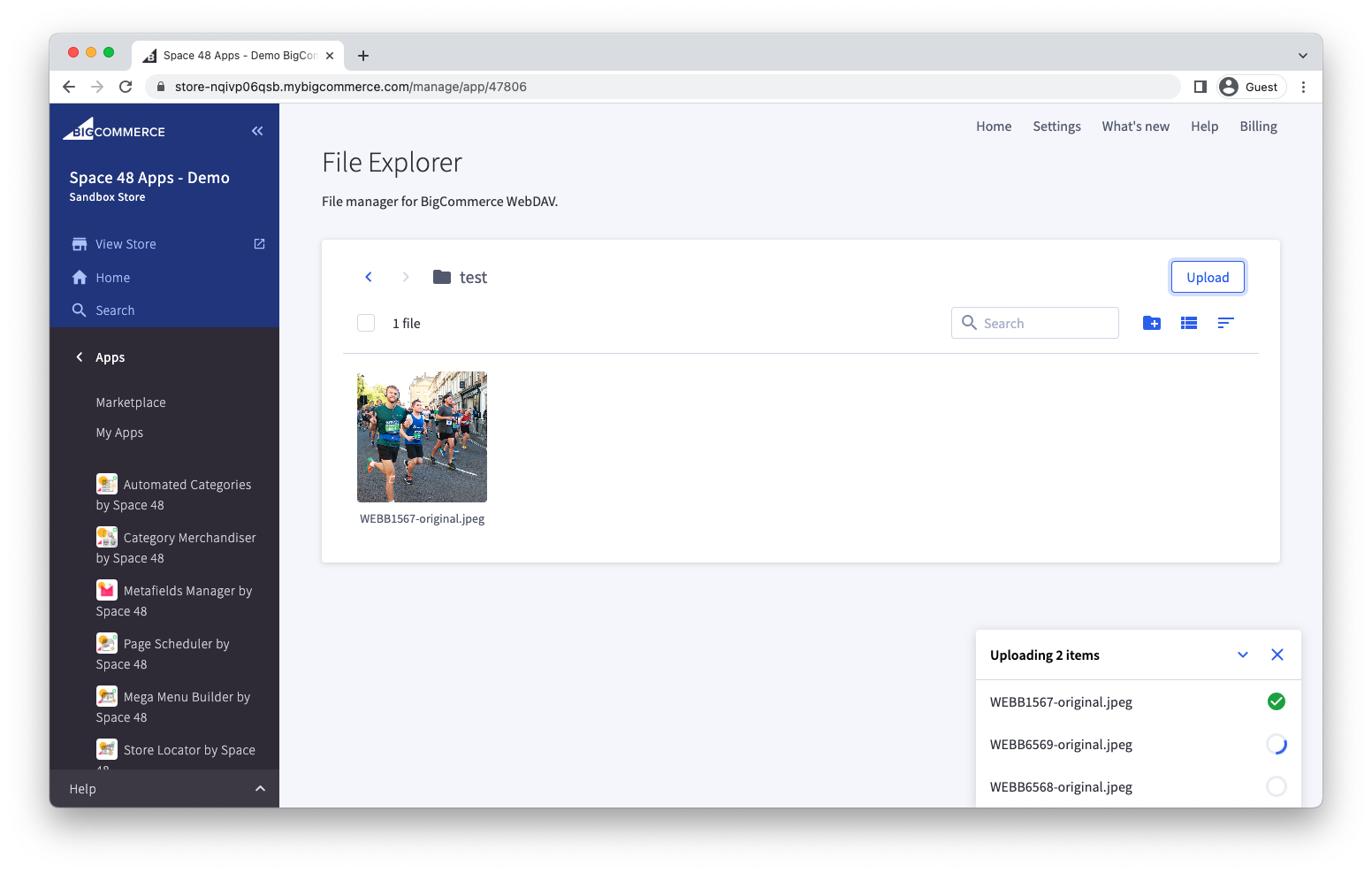
- Open the destination folder.
- Select Upload.
- Choose one or more files.
- Wait for each item in the upload activity window to complete.
Preview or edit a file
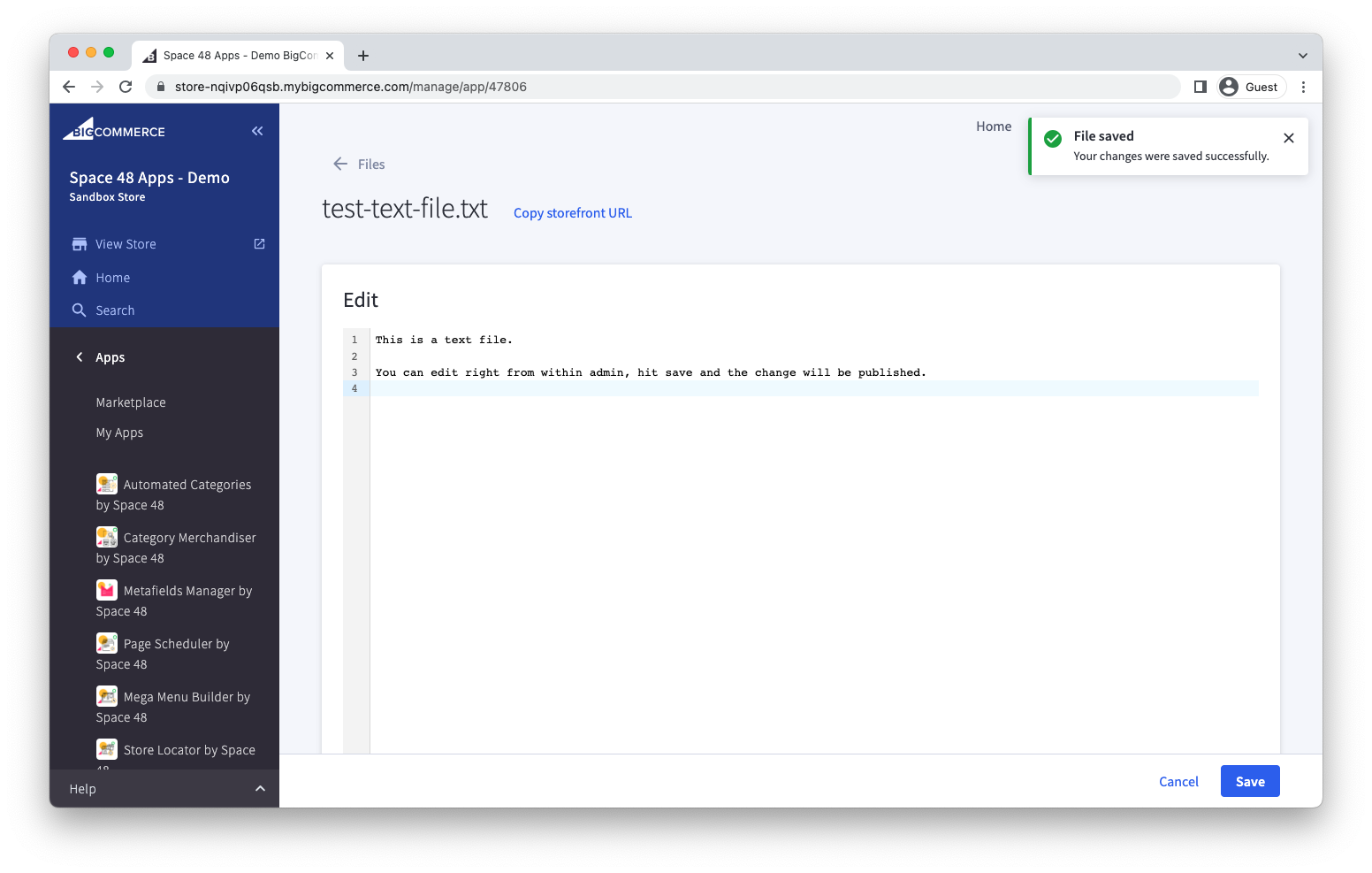
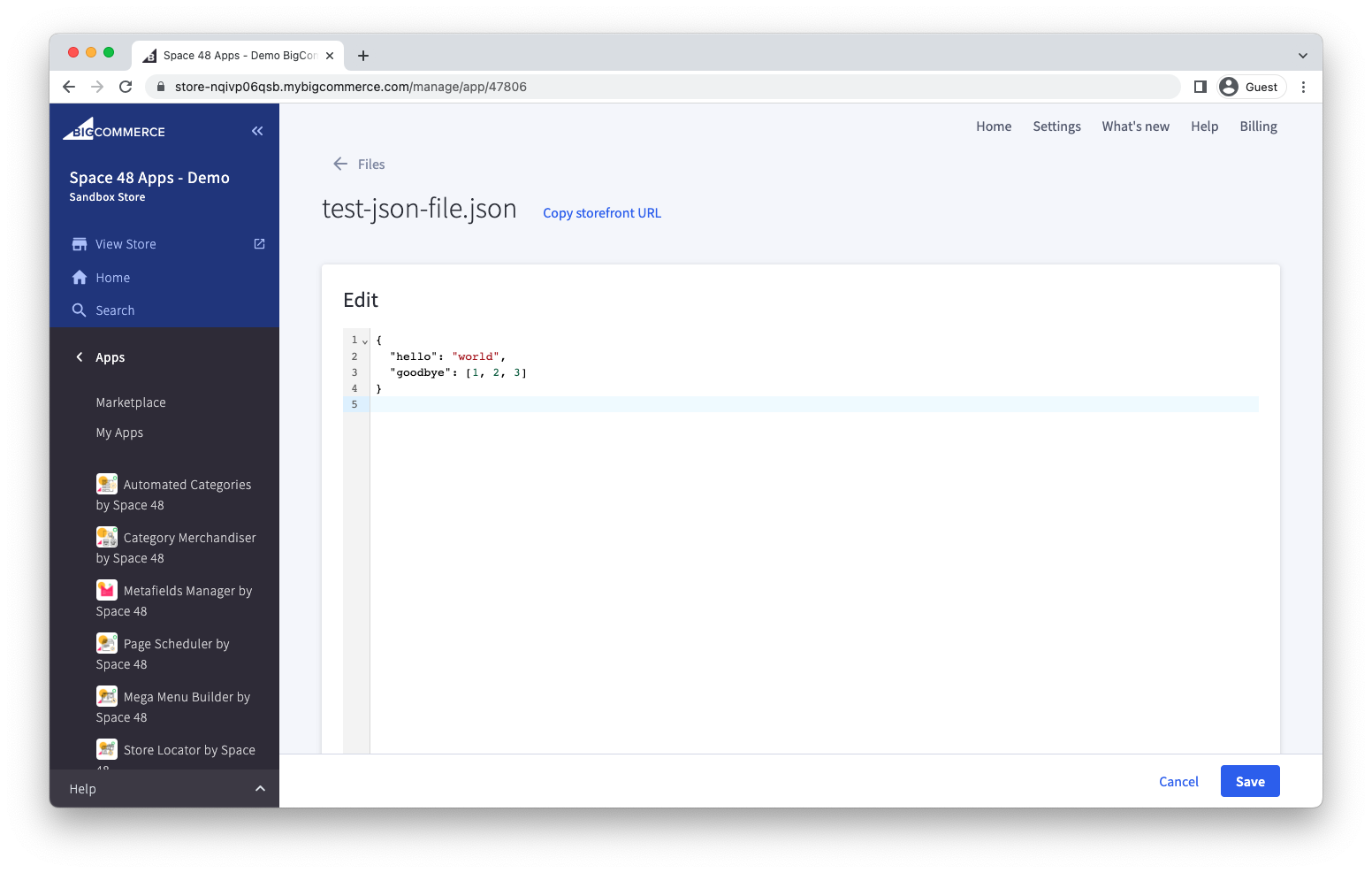
Double-click a file to open it.
- Edit CSS, CSV, HTML, JavaScript, JSON, Markdown and plain-text files. Supported formats include syntax highlighting where available.
- Preview JPEG, PNG, SVG, TIFF and WebP images.
- Preview PDF files.
Select Save after changing a text file.
Use other file actions
Select one or more items to use the available actions:
- Download
- Move
- Duplicate
- Rename
- Delete
You can also create a folder, search the current folder, and copy the storefront URL when a file has a public URL.
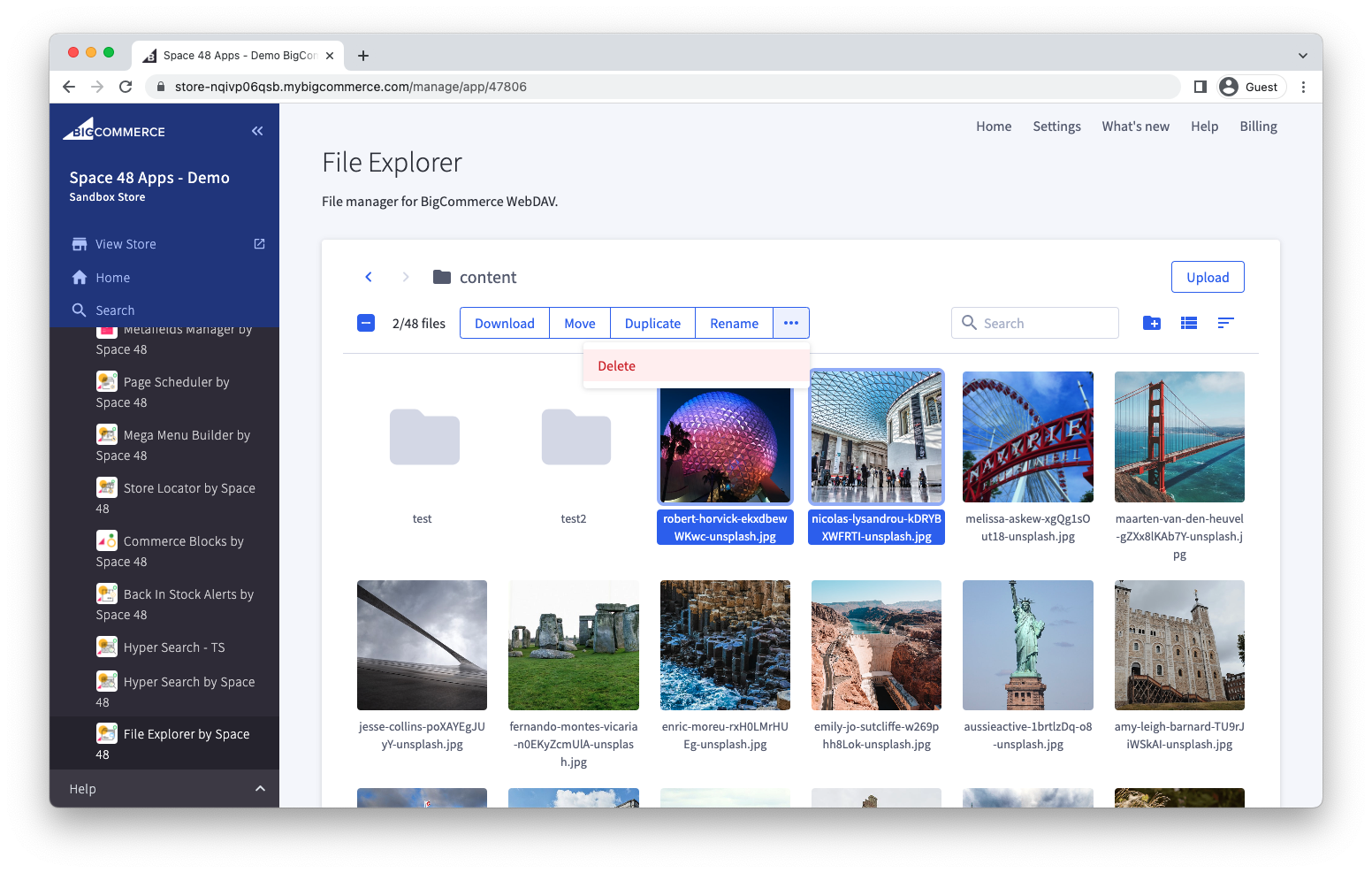
Deleting a file removes it from WebDAV. Check that the file is no longer needed before confirming the action.